

A client asks, “Was that bug fixed?” You search chat logs, meeting notes, and tickets, only to find the task was never added to the sprint board. A scrum board solves these problems by mapping every sprint task to a visible, trackable stage: To Do, In Progress, or Done. It offers a shared view of work across the team, helping eliminate confusion, reduce bottlenecks, and clarify ownership.
Jira’s Scrum boards, part of Atlassian’s broader project management suite, build on this foundation. They combine sprint planning, backlog management, real-time updates, and performance insights into one digital workspace. Teams can prioritize work, adjust timelines, and track delivery without switching tools or losing context.
In this article, we’ll break down how Jira Scrum boards work, why they improve agile execution, and how to set up and use them effectively.
Understanding the basics of Scrum and Kanban boards in Jira
Before diving into Jira Scrum boards, it’s essential to understand the two types of boards that Jira supports: Scrum and Kanban.
A Scrum board is designed for sprint-based work, enabling teams to plan, track, and complete tasks within timeboxed iterations. It is a visual workflow where tasks progress through stages, such as To-Do, In Progress, and Done. For example, a software team may plan a two-week sprint with backlog items like “Build login feature” or “Fix payment bug” on their Jira Scrum board.
Kanban boards, on the other hand, support continuous workflows with flexible task movement. This is focused on ongoing delivery. Tasks flow through stages without time limits, with a focus on limiting work in progress. A support team might use an online scrum board format to manage tickets, such as “Reset password” or “Resolve billing issue.”
Jira offers ready-to-use Scrum and Kanban board templates to help teams get started quickly and stay agile.
How to set up a Scrum board in Jira
Setting up a Scrum board in Jira is straightforward and highly customizable, making it an ideal choice for agile teams managing sprint-based work. A well-configured board has a direct impact on sprint planning, enabling teams to visualize their workload, identify bottlenecks early, and stay aligned during execution.
Follow the steps given below to set up a Scrum Board in Jira:
- Log in to Jira and navigate to your project.
- Click on “Boards”, then select “Create Board.”
- In the board creation window, choose “Scrum board”, then decide whether to base it on an existing project or a filter.
- Name your board and link it to the appropriate project.
- Once the board is created, you can:
- Link it to a backlog if not already associated.
- Configure columns such as To-Do, In Progress, and Done to match your team’s workflow.
- Set estimation units (e.g., story points or time) under board settings for accurate planning and tracking.
- Customize swimlanes by story, assignee, or epic to visually group work.
- Add quick filters to help team members focus on relevant tasks (e.g., “My Tasks” or “Bugs Only”).
- After completing the above steps, begin by adding issues from the backlog to your sprint, assigning tasks to team members, and setting priorities. During the sprint, use charts and reports to monitor progress. Also, identify areas where the team might be struggling, and, if necessary, adjust tasks and priorities to keep the work on track.
Setting up your Scrum board is just the beginning. With the right configurations and consistent usage, your board turns into a central hub for collaboration, accountability, and continuous improvement throughout each sprint.
Best practices for Jira Scrum board
To get the most out of your Jira Scrum board, it’s essential to follow a few best practices that keep your workflows clean, teams aligned, and sprints on track.
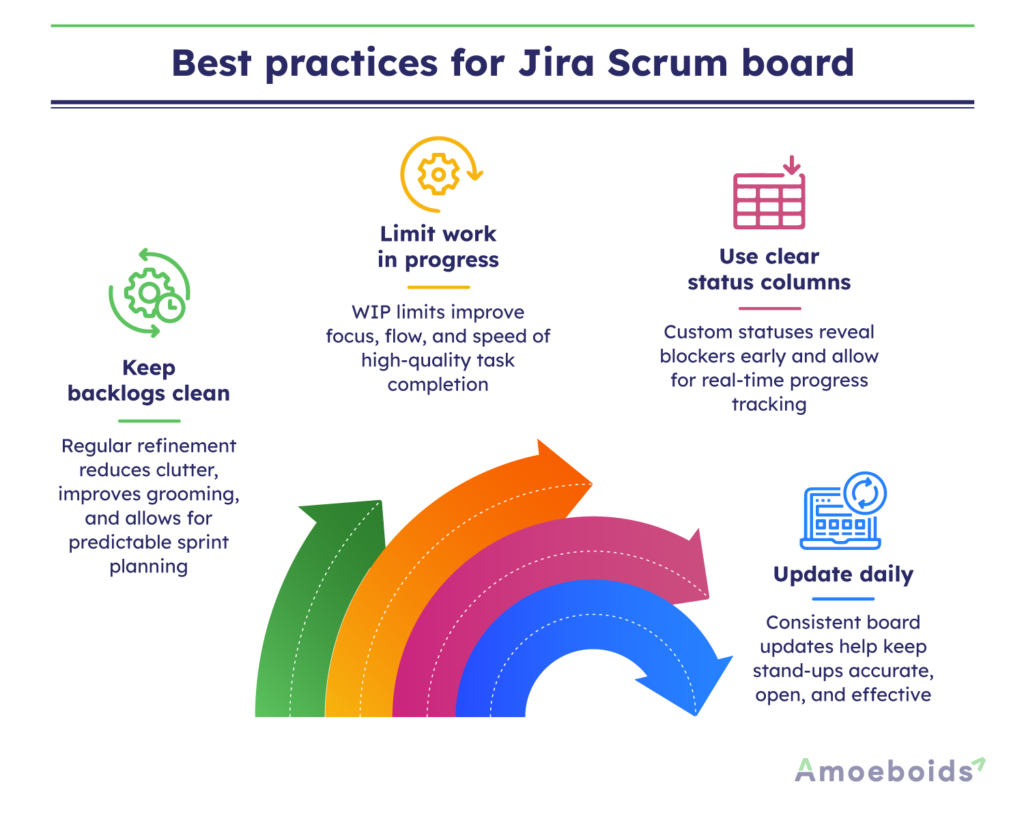
Keep backlogs clean:
Regularly refine your backlog by removing outdated items, splitting large or unclear tasks, and adding missing details, such as estimates or criteria. A clean backlog leads to clearer grooming, more predictable sprints, and fewer blockers during planning.
Limit work in progress:
Too many in-progress tasks can reduce focus and quality. Set WIP (Work-in-Progress) limits to help teams stay focused, improve flow, and finish work faster without compromising quality.
Use clear status columns:
Customize columns like ‘To Do’, ‘In Review’, ‘In Design’, ‘In Development’, or ‘Blocked’ to match how your team actually works. Clear, accurate statuses surface blockers early, support smoother handoffs, and make progress easier to track in real time.
Update daily:
Encourage your team members to update the board consistently to keep your Jira scrum boards accurate and useful during stand-ups.
By sticking to these simple habits, your Jira Scrum boards stay reliable, actionable, and aligned with agile goals.
Understanding the Jira Scrum board workflow
A Scrum board workflow illustrates how tasks progress through various stages during a sprint, typically from ‘To Do’ to ‘In Progress’ to ‘Done’. This structure helps your team stay organized, track progress, and spot bottlenecks early.
If you have admin permissions, you can customize these workflows to reflect a real process, like To Do → In Progress → In Review → Ready for QA → Done, for your development team. To modify a workflow in Jira, go to Project Settings > Workflows.
Each step in a workflow is referred to as a status (e.g., In Progress, Done), and the paths connecting these statuses are called transitions. You can configure these transitions with rules, conditions, validators, or triggers for detailed tracking and efficient communication. For example, requiring approval to move a product design from “In Review” to “Ready for QA.”
You can also map different roles to specific stages in a workflow. For instance, only QA may move issues to “Ready for Release,” or PMs may handle status updates to “Blocked.” Assigning responsibility ensures accountability and keeps work flowing smoothly.
Workflows do more than structure your board; they also impact reporting. Skipping transitions or leaving issues stuck in stages, such as “In Review,” can distort burndown charts (the amount of work left in a sprint) and velocity metrics (the work completed by your team per sprint), making it harder to assess sprint progress.
By aligning the workflow with your team’s responsibilities and rhythm, Jira not only supports how you work, it also gives you cleaner data and clearer insight.
Challenges of working with Jira Scrum board
Jira Scrum boards are powerful, but teams often encounter practical challenges that impact usability and efficiency. When managing hundreds of issues and multiple sprints, there can be some performance issues, such as:
- Steep learning curve: Jira’s interface and concepts can be overwhelming for new users, especially without onboarding or an agile experience.
- Risk of over-customization: Excess custom fields, workflows, or automation rules can clutter the board, reduce usability, and impact performance, especially on large-scale projects.
- Inconsistent usage: If tasks aren’t regularly updated, the board loses accuracy, creating gaps in visibility and team alignment.
- Limited task context and visibility: Vague tickets or missing links to epics and goals make collaboration harder. Dependencies and blocked tasks may be overlooked unless custom fields or add-ons are used.
- Scaling across teams: Aligning workflows across multiple teams or projects is a complex task. Synchronizing dependencies across boards takes coordination and setup effort.
- Permission confusion: Teams may be unclear on who can start sprints, edit workflows, or manage boards. Differences between board-level and project-level permissions often add to the confusion.
- Misleading reports: If workflow stages or transitions aren’t configured correctly, burndown charts and velocity reports can present skewed or incomplete data.
- Integration gaps: Connecting Jira with tools like GitHub, Slack, or Confluence often requires the use of third-party plugins. Syncing Jira data with external reporting systems also needs careful setup to avoid mismatches.
- Access and navigation issues: The UI can be non-intuitive for first-time users or those using mobile devices, and team members with limited permissions may struggle to navigate or manage tasks effectively.
- Lack of built-in support: Without templates, usage guidance, or admin support, new users may struggle to get started, often leading to overreliance on a few experienced Jira admins.
These challenges aren’t flaws in Jira itself; they’re often the result of unclear setup, inconsistent habits, or lack of governance. With thoughtful configuration, training, and shared usage norms, you can overcome these hurdles and unlock the full value of Jira Scrum boards.
Jira Scrum board best examples
Great Scrum boards aren’t one-size-fits-all — they reflect the unique workflows, priorities, and rhythms of each team. The best boards are simple, visual, and aligned with sprint goals. Here are a few Scrum board examples used by agile teams:
1. Feature-focused board
Ideal for: Product and engineering teams working on planned feature rollouts
Board layout: To Do → In Progress → In Review → Ready for QA → Done.
Use case: Large features are broken into sprint-ready stories (e.g., “Implement password reset” or “Add payment gateway”).
Best practice: Use filters to group stories by feature or epic to simplify status tracking and reporting.
Setup complexity: Low — uses standard workflow stages
Integrations: GitHub, Bitbucket for pull request linking
Business impact: Improves sprint visibility and accelerates feature delivery with fewer blockers.
2. QA-integrated board
Ideal for: Cross-functional teams with embedded QA and dev collaboration
Board layout: To Do → In Progress → Code Review → QA Testing → Done
Use case: Suitable for teams that require formal testing, approvals, or peer reviews before moving work to Done
Best practice: Assign permissions per stage — e.g., only QA can move tasks past testing
Setup complexity: Medium — involves custom workflow stages and permissions
Integrations: TestRail, Zephyr, or Jira plugins for test case management
Business impact: Reduces rework, ensures smoother handoffs, and improves release quality.
3. Lightweight ops board
Ideal for: Support, IT, or operations teams handling ad hoc, continuous tasks
Board layout: Backlog → Doing → Blocked → Done
Use case: Tracks non-sprint work like server monitoring, bug fixes, and quick support requests
Best practice: Keep WIP limits visible and use labels or components to categorize work
Setup complexity: Very low — minimal stages, easy drag-and-drop flow
Integrations: Slack or Opsgenie for real-time alerts and task updates
Business impact: Boosts response time and keeps small tasks from slipping through the cracks.
4. Metric-driven board
Ideal for: High-velocity teams focused on optimizing performance and delivery
Board layout: To Do → In Progress → In Review → QA → Done
Use case: Combines detailed tracking with metrics like cycle time, lead time, and burndown velocity
Best practice: Enable Jira dashboards for sprint reports, and set WIP limits to avoid overload
Setup complexity: Medium to high — requires configuration of reports and possibly third-party add-ons
Integrations: Jira plugins like Control Chart, Velocity Chart, and external analytics tools
Business impact: Enables data-driven retrospectives and continuous improvement of delivery.
Conclusion
Jira Scrum boards bring structure, clarity, and accountability to agile teams; however, their real power lies in how you utilize them. The right setup, best practices, and workflows tailored to your team can significantly boost delivery and collaboration.
Investing time in customizing your board, defining clear sprint goals, and continuously refining your processes will go a long way in helping your team stay aligned and productive. As Agile evolves within your organization, so too should your Scrum board, adapting to reflect the way your team works most effectively. When used effectively, Jira becomes more than a project management tool; it becomes the backbone of your agile success.
FAQs
What is the use of Jira Scrum board?
Jira Scrum boards help agile teams manage and track work during sprints by organizing tasks, visualizing progress, and improving collaboration and delivery efficiency.
How does a Jira Scrum board work?
A Jira Scrum board is a visual tool in Jira that helps agile teams plan, track, and manage sprint work by organizing tasks into columns such as ‘To-Do,’ ‘In Progress,’ and ‘Done’. As teams complete tasks, they update their progress by moving items across these columns.
How to create a Scrum board in Jira?
To create a Scrum board in Jira, go to your project dashboard, click on “Boards” > “Create Board”, choose Scrum board, select a project or filter, and configure your board settings.
Who manages the Scrum board?
The Scrum board is primarily managed by the Scrum master, who ensures it is used effectively, updated regularly, and aligned with agile practices. However, other team members must also actively update their progress on the board to ensure it accurately reflects the real-time status of the project.